Video tutorials
Learn it in one minute.
Short videos, one task each. Subtitles in English, Français and العربية (⚙ › Subtitles).
From installing to the printed sheet, in about 5 minutes.
Short videos, one task each. Subtitles in English, Français and العربية (⚙ › Subtitles).
Download, run AB_Photo_ID_Setup.exe (click "More info" › "Run anyway" if Windows asks). Your 7-day trial starts.
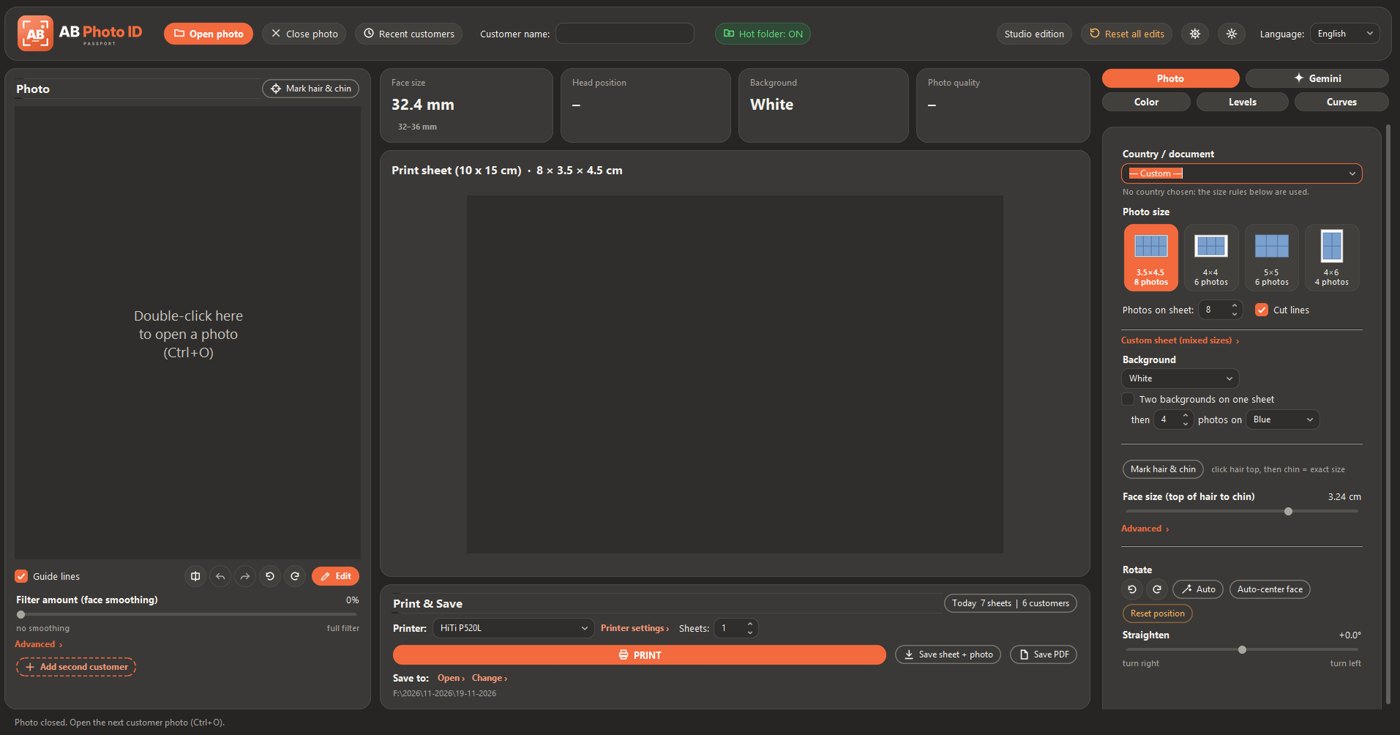
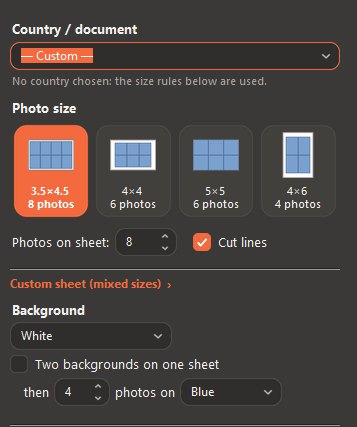
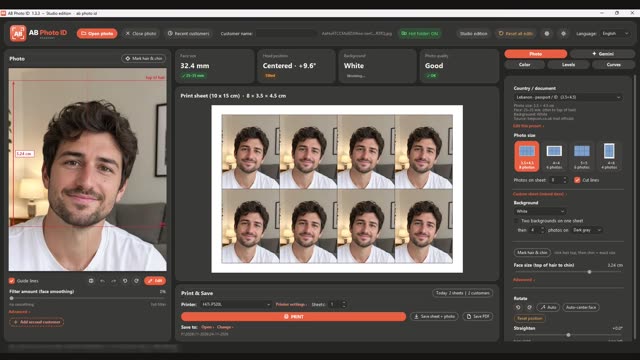
Double-click the photo area or press Ctrl+O. Choose the country / document: size, face range and background are set for you.
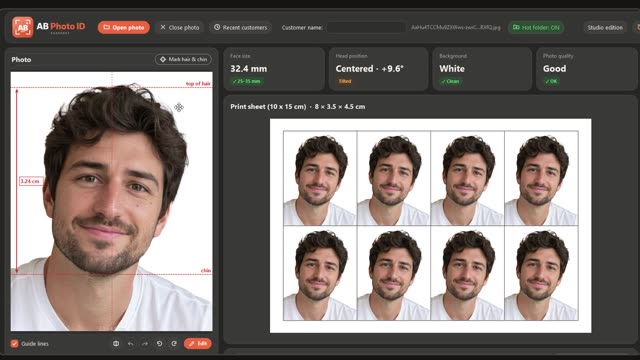
Look at the 4 cards on top: green = OK, orange = look again. Use Edit (Ctrl+E) for spots and skin, or Mark hair & chin for an exact face size.

Type the customer's name, choose the printer and press PRINT. The sheet and the photo are saved in a folder for each day.

Photoshop is not needed. But if it is installed on the PC, the app uses it to remove the background — the cleanest result, especially around hair. If the app shows "Basic cutout" on the Background card, Photoshop was not used.
Settings › Background removal › Remove background with: Adobe PhotoshopThe camera saves into one folder; the app opens each new photo by itself.

In the app, the Hot folder window has a "? How it works" button with these steps.
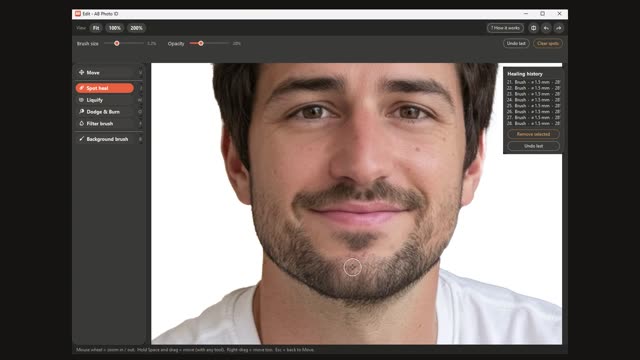
Press Edit (Ctrl+E). Pick one tool, work on the photo, close the window — your work stays. Each tool has a one-letter shortcut.
Click each pimple or spot.
Smooth the skin where you paint. Eyes and lips stay sharp.
Lighten dark circles, darken shine.
Push, shrink, grow. Restore brings back the original.
Bring hair back or erase the background.
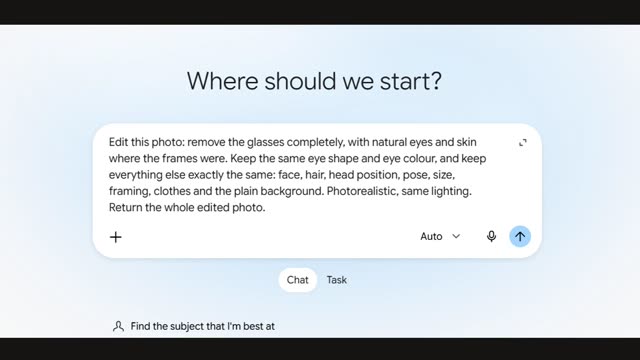
Show the Gemini result only where you paint.
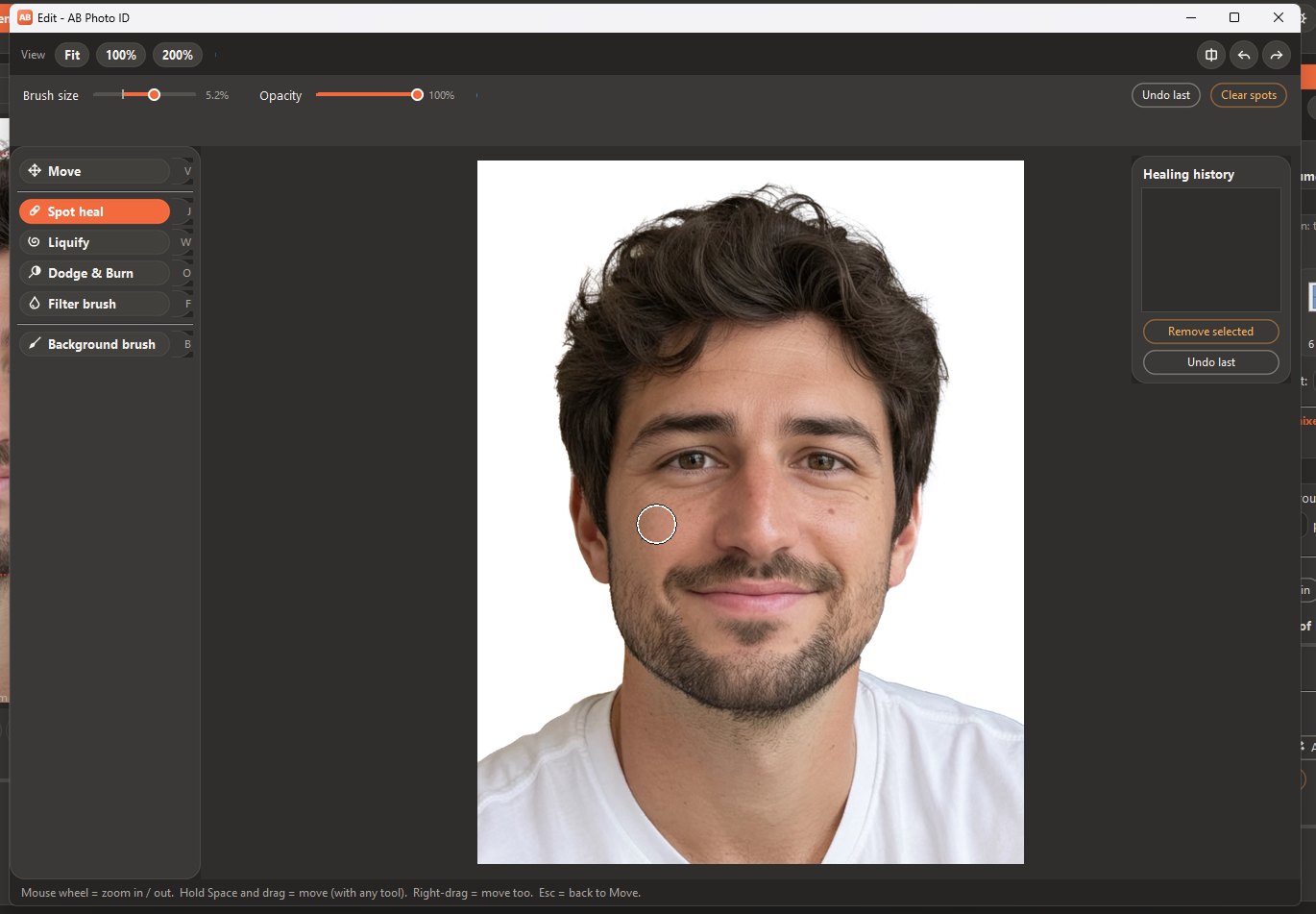
Mouse wheel = zoom · hold Space = move with any tool · double-click a slider = back to normal · every tool has its own Reset.
 ▶0:48
 ▶1:02
 ▶0:53
 ▶1:08